
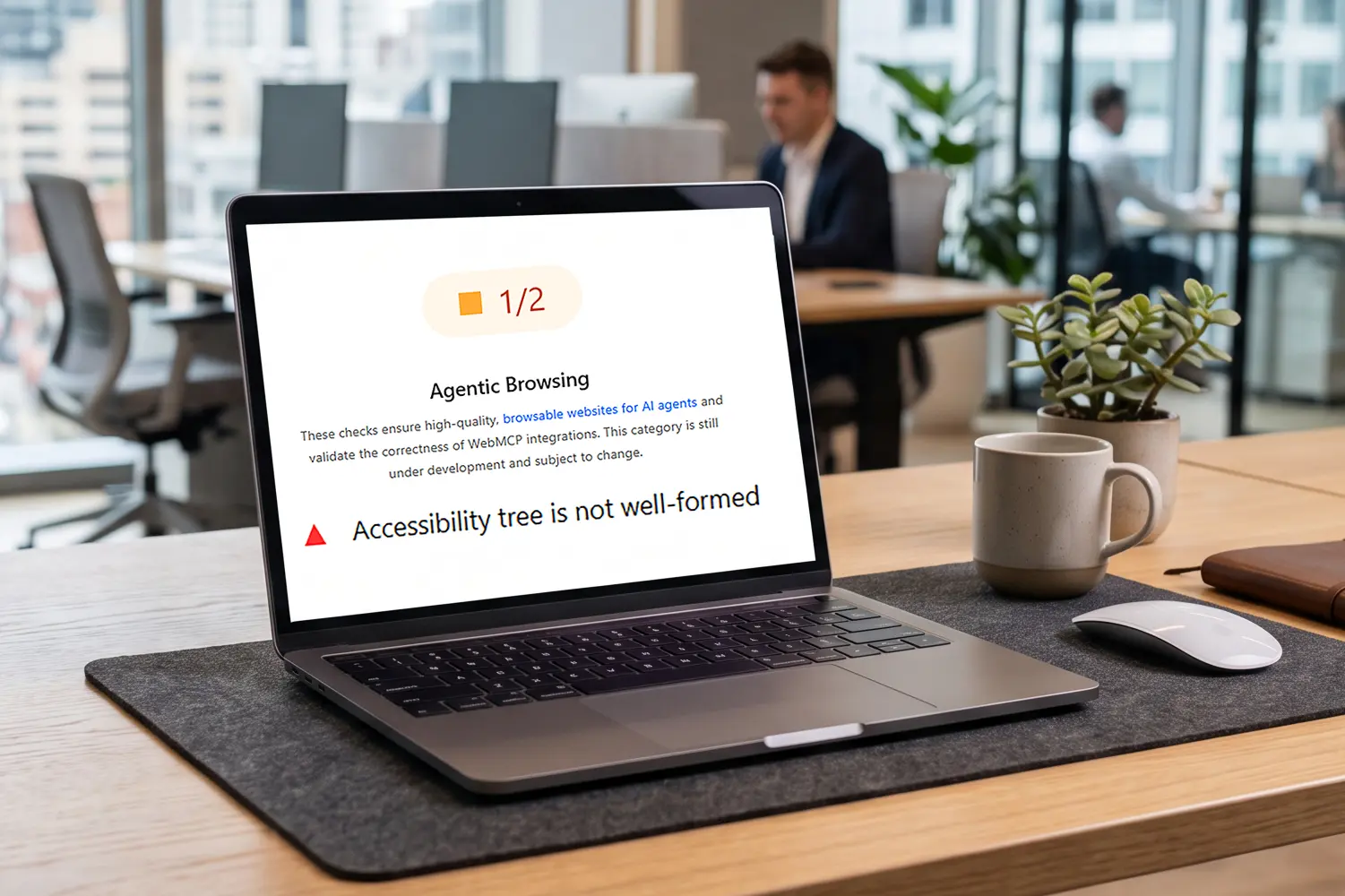
How to Fix “Accessibility Tree Not Well Formed” Errors
Google Lighthouse recently added an “Agentic Browsing Score” metric. The score reflects how well AI agents can crawl and understand your content. It is available in Chrome v150 or higher and through PageSpeed Insights. One of the tests to calculate this score evaluates the “accessibility tree” for your webpage.
What is the “accessibility tree”?
The accessibility tree is a marked down version of the content and interactive elements on your webpage. It represents the content that is available to screen readers and other assistive technologies. It is now being used by AI agents to navigate your content. Any content that has a CSS style of display:none (and often visibility:hidden) or an aria-hidden=true attribute will not be included in the accessibility tree.
An accessibility tree that is not well formed is a barrier to assistive technology users and can reduce your visibility in AI search results and citations.
Common Accessibility Tree Errors and How to Fix Them
Links must have discernible text
One of the most common errors, this means there is no text or text label associated with a link.
Example
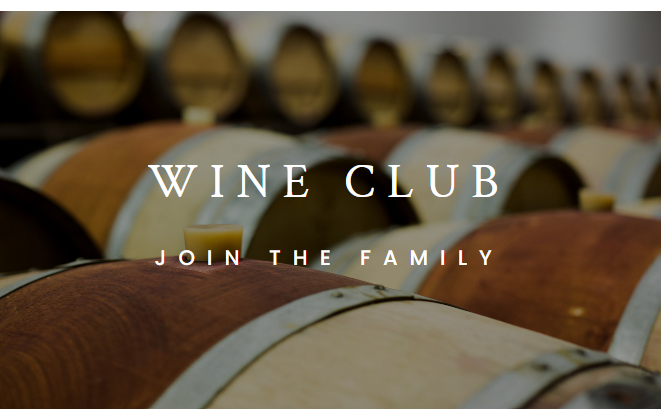
<a href="[url]" class="tatsu-col-overlay-link"></a>In this example, a link has been positioned overtop of an image and some text in order to make the whole box clickable. The visible text is not contained within the link itself. Screen reader users and voice command users would not be able to use this link.
There are two options to fix this.
- Wrap the link code around the entire box so that the visible text becomes the link text.
- Add an aria-label attribute to the link code that is the same as the visible link text.
You may also see this error for links where the only content is an image that does not have alt text. In this case, you can fix the issue by adding alt text to the image or an aria-label on the link that indicates the purpose of the link.
Buttons must have discernible text
This error means there is no text or text label associated with the button.
Example
<button type="button"><span class="button-content"><span class="stick"></span><span class="stick"></span><span class="stick"></span></span></button>This is an example of a button to open a navigation menu. There is no visible text associated with this button. Because there is no text or text label programmatically associated with this button, screen reader users and voice command users would not be able to use it.
There are two options to fix this.
- Add aria-label=”Menu” to the button.
- Add a <span> tag within the <button> that has a “screen reader only” class that contains the text “Menu”.
For full accessibility, this button should also have a few additional aria attributes.
- aria-haspopup=”true”
- aria-expanded=true|false, depending on whether or not the menu is visible
- aria-controls=[the id of the navigation menu]
Elements should not have tabindex greater than zero
By default, only specific HTML elements receive focus. These include links, buttons, and form fields. Images and generic elements like divs and spans do not naturally receive focus. Unless modified, the order that elements receive focus follows their position within the HTML code of the page.
Setting a tabindex to -1 can take a naturally focusable element out of the tab order. Setting a tabindex to 0 on a naturally non-focusable element will add it into the tab order. Setting a tabindex to a value greater than 0 changes the priority of when the element receives focus.
Keyboard only users should be able to use their TAB key to move through the content in a way that reflects the logical order that content is presented visually on the page, so modifying tabindex values should be limited.
Example
<a id="pojo-a11y-skip-content" class="pojo-skip-link pojo-skip-content" tabindex="1" accesskey="s" href="#content" role="link">Skip to content</a>In this example, tabindex=”1″ has been added to the “Skip to Content” link. Clearly, the developer intends to give this element increased priority in the tab order. However, in this case, it is unnecessary. As a link, this is a naturally focusable item. It is already the first element in the HTML after the body tag, so it will automatically receive focus first.
ARIA hidden element must not be focusable or contain focusable elements
Elements with aria-hidden=”true” attributes are hidden from screen reader users and are not included in the accessibility tree. Including focusable elements within a hidden element prevents screen reader users from having access to that functionality.
Example
<div id="subhead-search" aria-hidden="true">
<form role="search" method="get" action="/">
<div>
<label class="screen-reader-text" for="s">Search for:</label>
<input type="text" name="s" placeholder="Keyword" class="et_pb_s">
<input type="submit" value="Search" class="et_pb_searchsubmit" style="">
</div>
</form>
</div>
In this example, a search form is not initially visible on the page. Clicking the search icon reveals the form. The developer has positioned the form off-screen using CSS and has added an aria-hidden=”true” attribute around the whole form when it is not visible. When the form becomes visible, the aria-hidden attribute is changed to false.
A better way to accomplish this is to remove the aria-hidden attribute and add a display:none CSS style when the form is hidden. This automatically prevents screen reader users from accessing the form when its not visible. When a user clicks the search icon to make the form visible, the display:none style can be removed.
ARIA role should be appropriate for the element
ARIA roles provide a way to tell assistive technologies that an HTML element is being used for something other than its standard purpose. While it is a helpful tool, it can often be misused, as it is in this example.
Example
<li class="cl-carousel-slide" data-cy="carousel-slide" aria-label="1 of 3" role="group" aria-roledescription="slide" aria-hidden="false">In this example, a carousel of slides has been coded using list elements. This is the correct way to code this feature. If all of the CSS and JavaScript are removed, the content still makes sense.
According to the ARIA documentation, “The group role identifies a set of user interface objects that is not intended to be included in a page summary or table of contents by assistive technologies.”
Within each list item in this carousel, there is an image and a <div> that contains text. Presumably, the developer’s intent was to use role=”group” on the <li> tag to indicate that these child elements should be treated as one. Since the agentic browsing scanner is objecting to role=”group” being applied to the <li> tag, a possible solution could be to add a container element inside the <li> that includes the image and text and then add role=”group” to that element. However, since the elements are already contained within the list item, the role=”group” attribute seems unnecessary.
This is just one example of why you might see the error “ARIA role should be appropriate for the element”. If you are seeing this error, you will need to dig deeper into how and why ARIA is being used on your site. Often, no ARIA is better than bad ARIA.
Elements marked as presentational should be consistently ignored
When elements are marked as presentational – meaning decorative- they are ignored by assistive technologies and not included in the accessibility tree. This can be done by adding role=none, role=presentation or alt=”” for images.
Example
<ul class="cl-carousel-train " data-cy="carousel-train" role="none" aria-atomic="false" aria-live="polite">In this example, there is a mis-match between the ARIA attributes. The element has been given a role=”none” and aria-live=”polite”. The aria-live attribute indicates that the content may be updated dynamically and updates should be announced to screen readers. By default, an aria-live region is meaningful, not decorative. In this case the role=”none” attribute should be removed.
Conclusion
Having a well-formed accessibility tree does not mean that your website is fully accessible. It is just one step towards having an accessible site, while also potentially improving your AI visibility.
Contact Elevage Digital if you need help fixing accessibility tree errors on your site.
Ready to Get Started?
If you would like to talk about how Elevage Digital can address your specific needs, provide some details to start the conversation.